> ## Documentation Index
> Fetch the complete documentation index at: https://docs.blubash.io/llms.txt
> Use this file to discover all available pages before exploring further.
# Create a Pipeline
> Step by step to create a Pipeline in BluBash: template, deal fields, teams with access, stages with deadlines, close destination and reasons.
The **New pipeline** wizard has six steps: **Type**, **Details**, **Teams**, **Stages**, **Reasons** and **Review**. You can change every choice later, so you do not need to get everything right the first time.
Creating and editing Pipelines requires the **Admin** or **Manager** role. Members use their teams' Pipelines but do not see the **New pipeline** button.
## Before you start
* Create the teams that will use the Pipeline. Pipeline access comes from the team. [Create and configure teams →](/account-settings/create-configure-teams)
* List the real stages of your process and the criterion for a deal to enter each one.
* Define won and lost reasons using the names your team already uses.
## Step by step
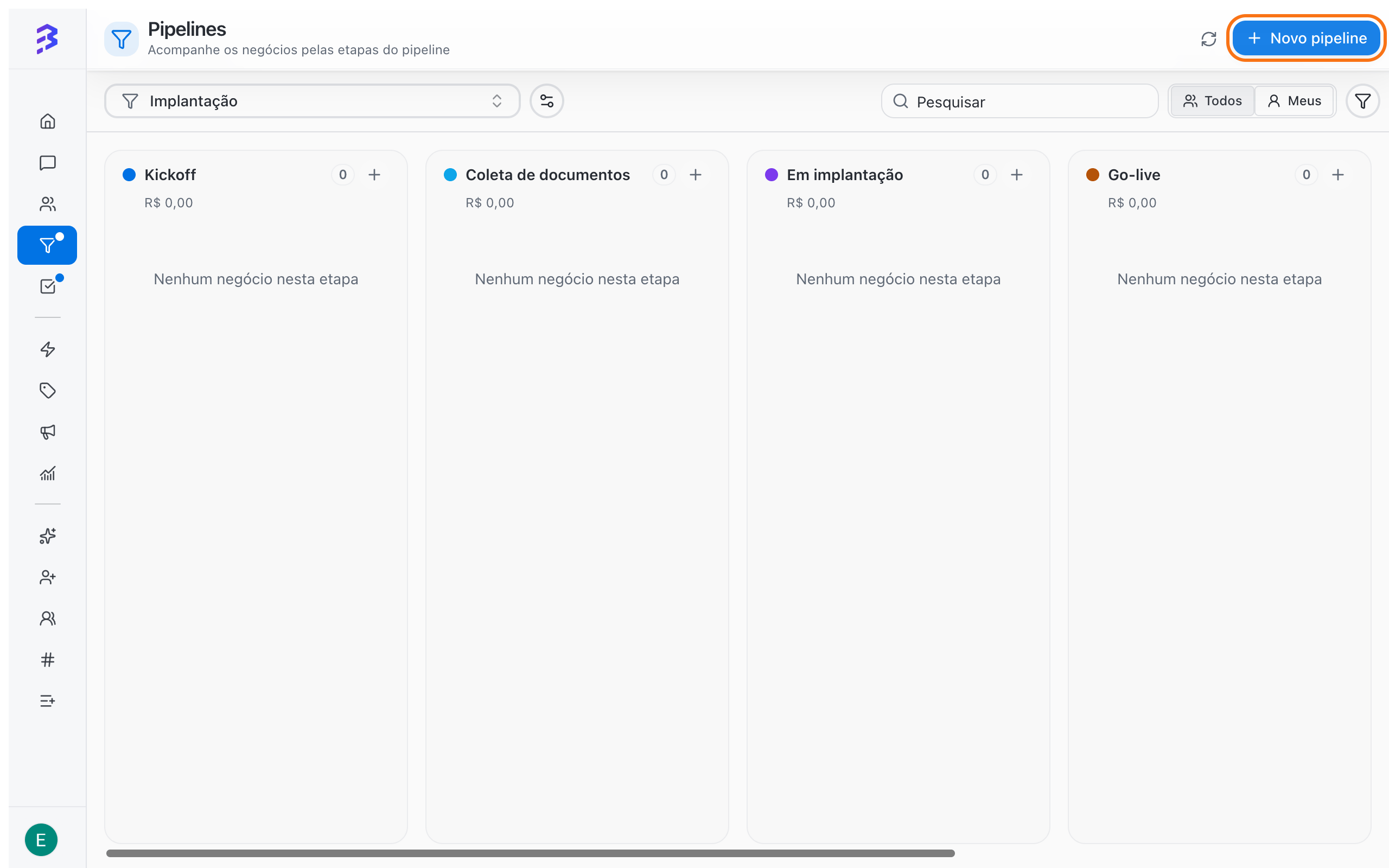
Go to **Pipelines** in the sidebar and click **New pipeline**.
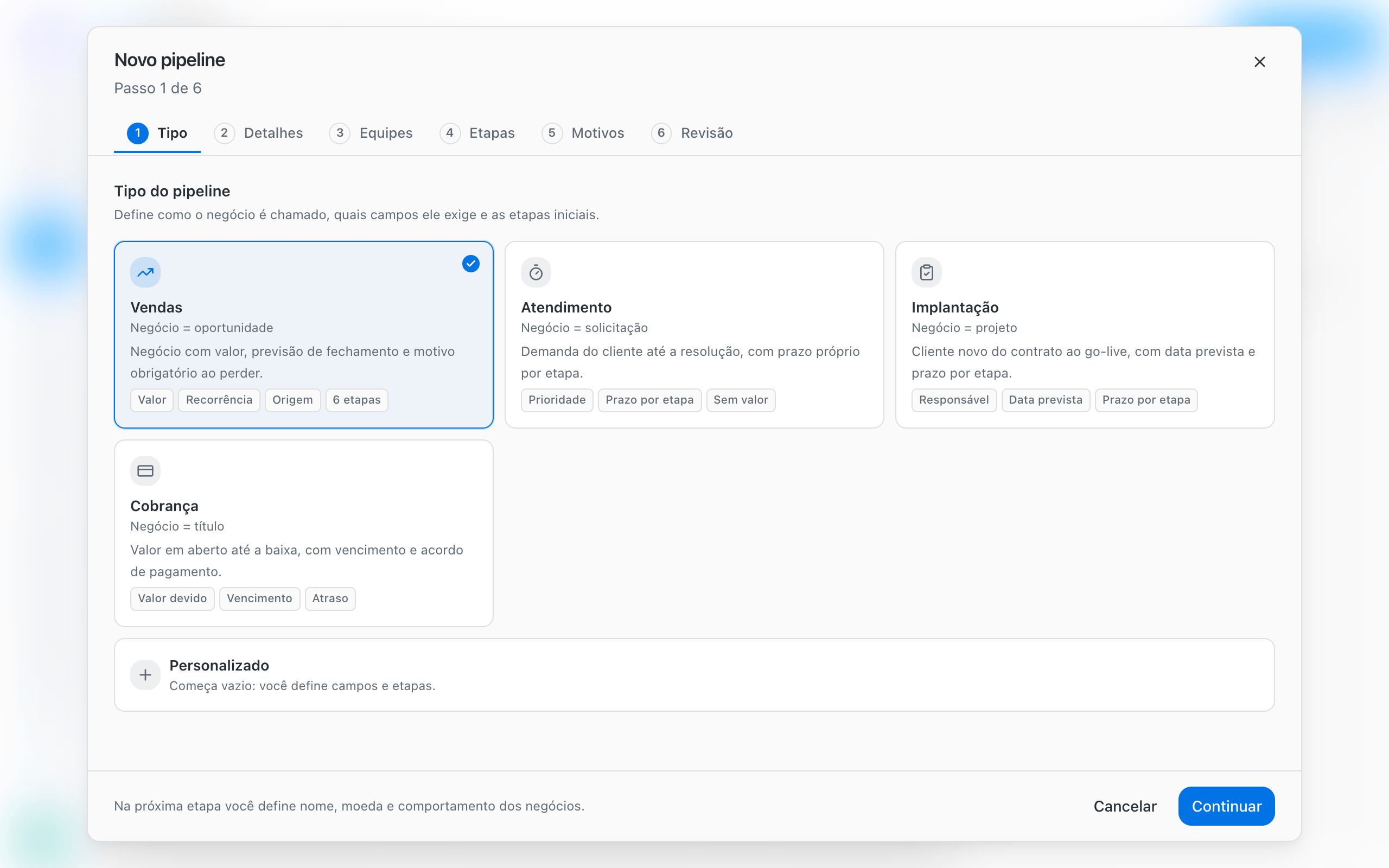
 Under **Pipeline type**, choose **Sales**, **Support**, **Onboarding**, **Collections** or **Custom**. The template sets the starting stages, fields and reasons. You adjust everything in the next steps.
| Template | A deal represents | Starting point |
| - | - | - |
| **Sales** | Opportunity | Value, recurrence and a required reason when lost |
| **Support** | Request | Priority and stage deadlines, no value |
| **Onboarding** | Project | Due date and stage deadlines |
| **Collections** | Invoice | Amount due and due date |
| **Custom** | Whatever you define | Starts empty: you set the fields and stages |
Under **Pipeline type**, choose **Sales**, **Support**, **Onboarding**, **Collections** or **Custom**. The template sets the starting stages, fields and reasons. You adjust everything in the next steps.
| Template | A deal represents | Starting point |
| - | - | - |
| **Sales** | Opportunity | Value, recurrence and a required reason when lost |
| **Support** | Request | Priority and stage deadlines, no value |
| **Onboarding** | Project | Due date and stage deadlines |
| **Collections** | Invoice | Amount due and due date |
| **Custom** | Whatever you define | Starts empty: you set the fields and stages |
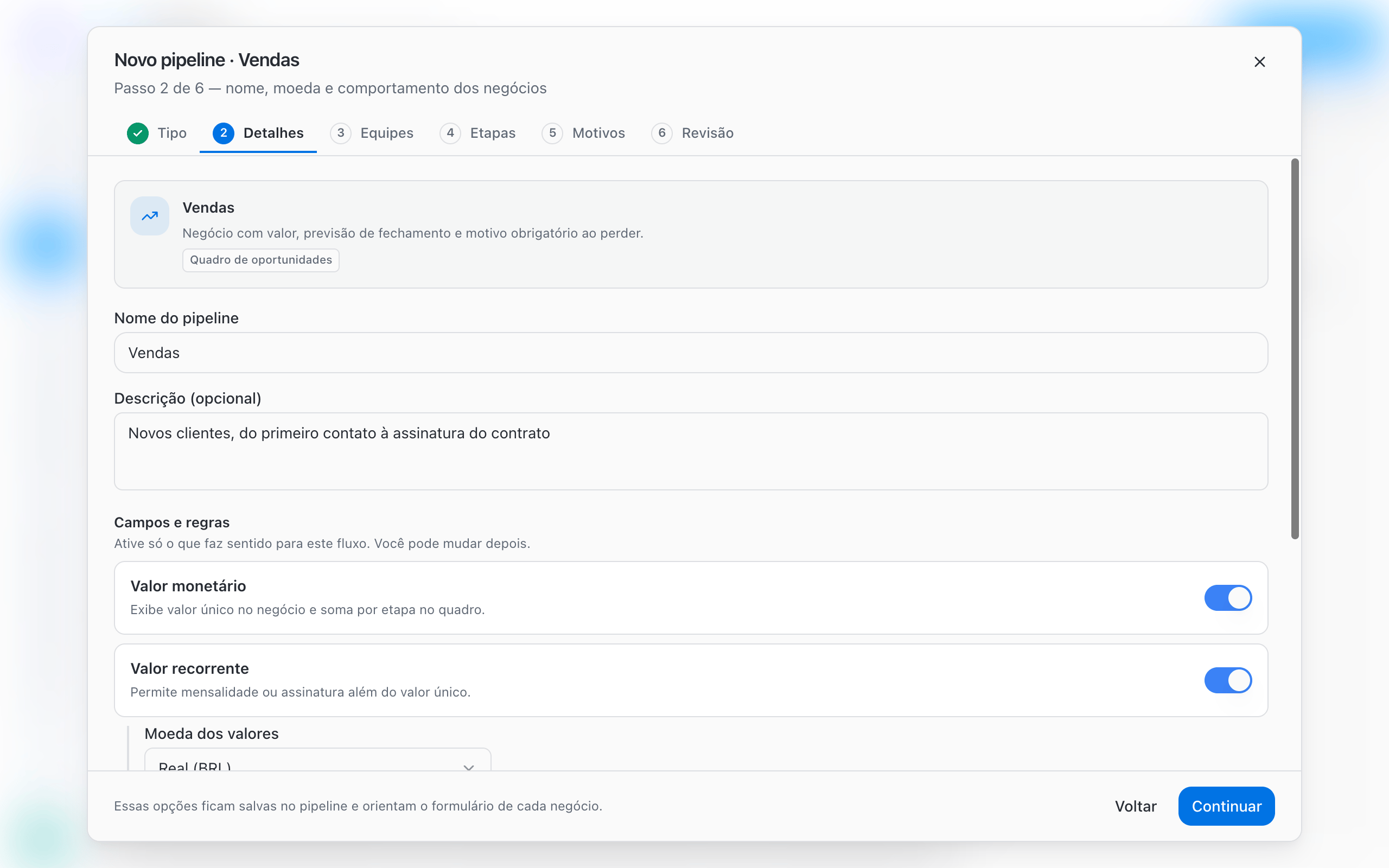
 Enter the **Pipeline name** (required) and, if you want, a **Description (optional)** that explains what the Pipeline is for and who uses it.
Under **Fields and rules**, enable only what fits the process:
| Option | What it does |
| - | - |
| **Monetary value** | Shows a single value on the deal and sums values per stage on the board |
| **Recurring value** | Lets you record a subscription or monthly amount in addition to the one-time value |
| **Value currency** | Appears when a value field is on: Real (BRL), US Dollar (USD) or Euro (EUR) |
| **Priority** | Shows Low, Medium, High or Urgent on each deal |
| **Due date** | Shows the expected completion or due date on the deal |
| **Deal additional fields** | Chooses which workspace deal fields appear on this Pipeline's deals. Empty means none |
If there are no deal fields yet, use **Manage deal fields** to create them.
Enter the **Pipeline name** (required) and, if you want, a **Description (optional)** that explains what the Pipeline is for and who uses it.
Under **Fields and rules**, enable only what fits the process:
| Option | What it does |
| - | - |
| **Monetary value** | Shows a single value on the deal and sums values per stage on the board |
| **Recurring value** | Lets you record a subscription or monthly amount in addition to the one-time value |
| **Value currency** | Appears when a value field is on: Real (BRL), US Dollar (USD) or Euro (EUR) |
| **Priority** | Shows Low, Medium, High or Urgent on each deal |
| **Due date** | Shows the expected completion or due date on the deal |
| **Deal additional fields** | Chooses which workspace deal fields appear on this Pipeline's deals. Empty means none |
If there are no deal fields yet, use **Manage deal fields** to create them.
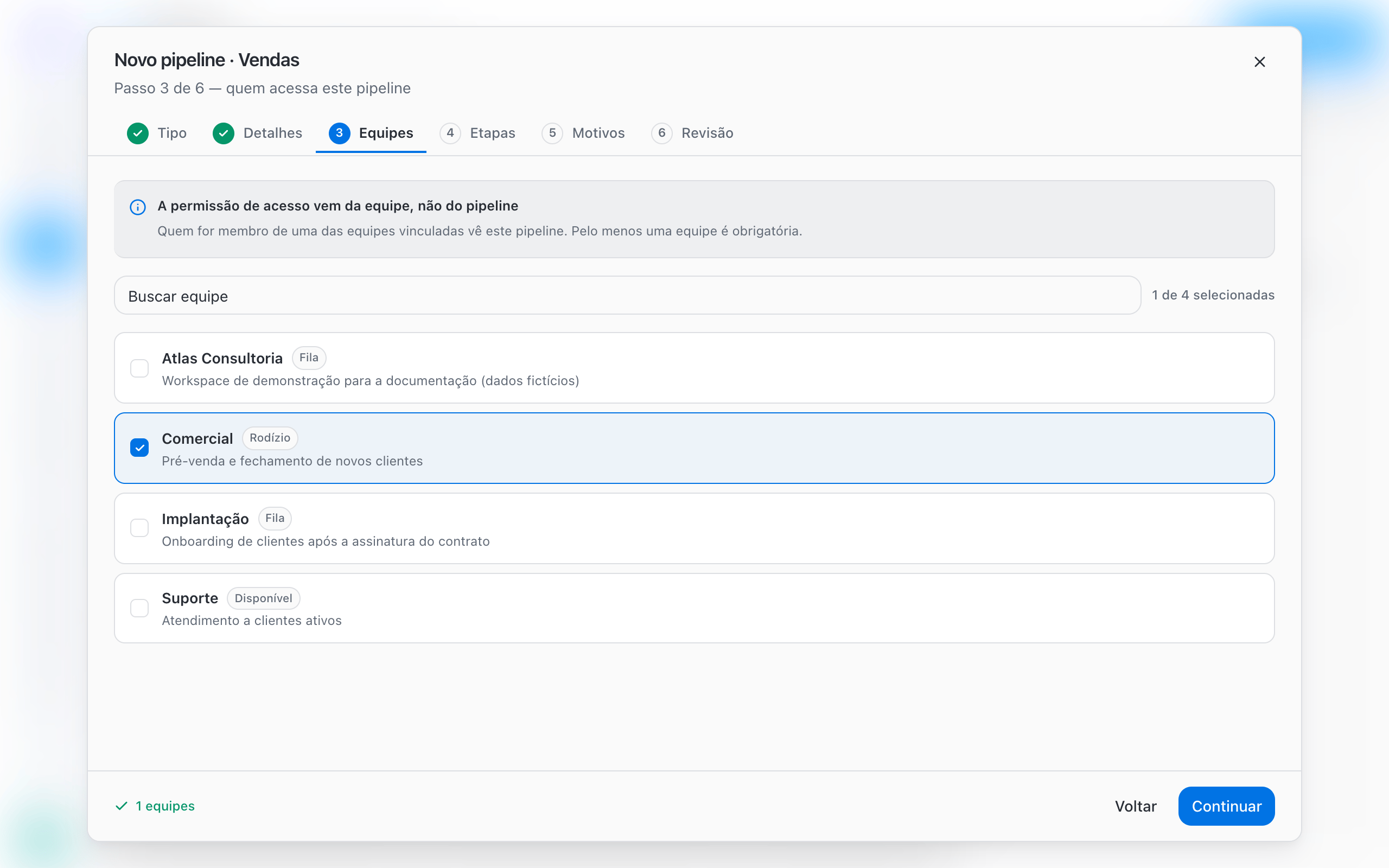
 Select the teams that will use the Pipeline. Access comes from the team, not the Pipeline: members of a linked team can see the Pipeline and its deals. At least one team is required to continue.
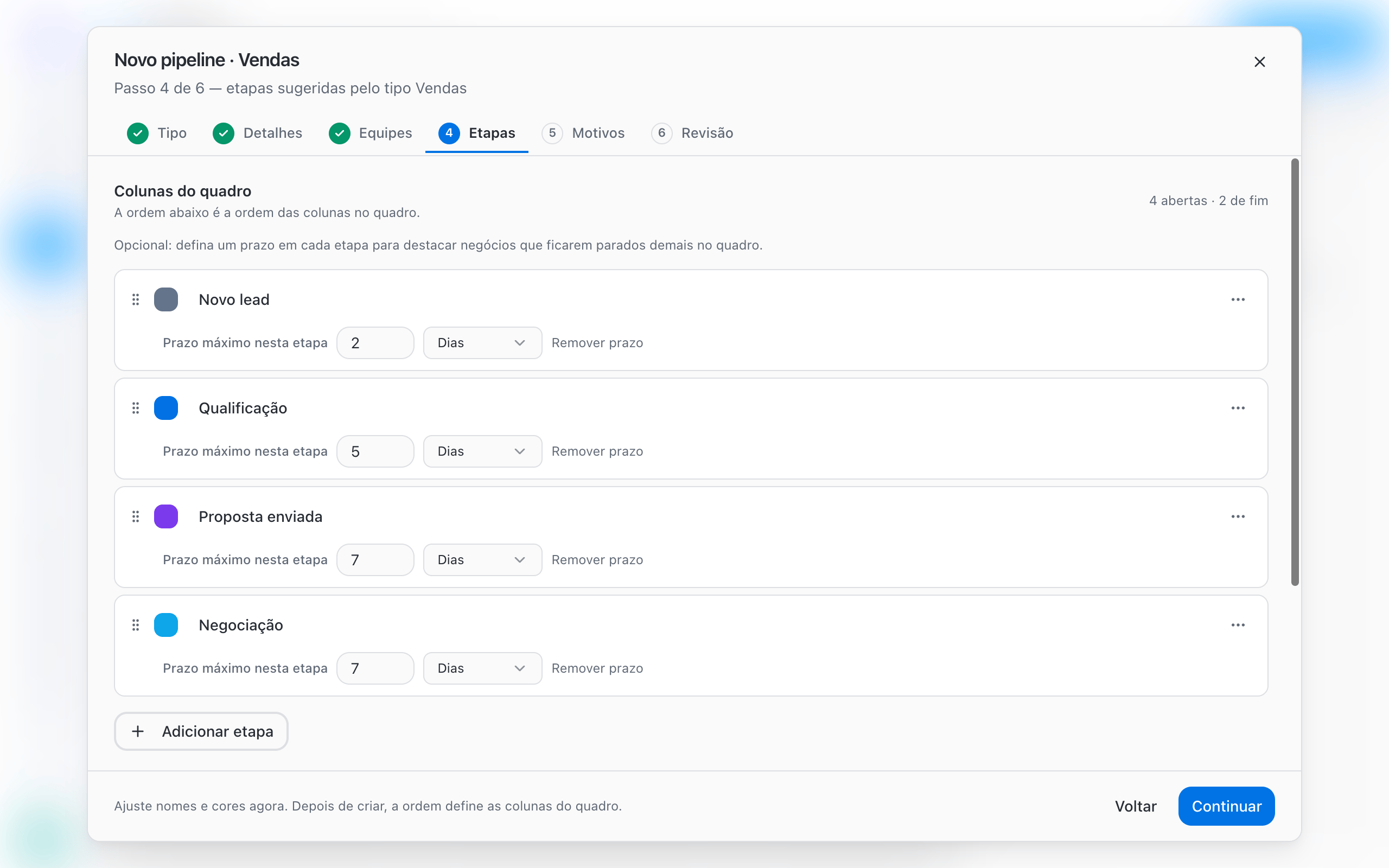
 Under **Board columns**, adjust stage names, colors and order. The order of the list is the column order on the board. Drag to reorder and use **Add stage** to add new columns.
On each open stage, click **Set a deadline on this stage** to enter a **Maximum time in this stage**, in **Days** or **Hours**. When a deal stays longer than that, its card is highlighted on the board.
Under **Board columns**, adjust stage names, colors and order. The order of the list is the column order on the board. Drag to reorder and use **Add stage** to add new columns.
On each open stage, click **Set a deadline on this stage** to enter a **Maximum time in this stage**, in **Days** or **Hours**. When a deal stays longer than that, its card is highlighted on the board.
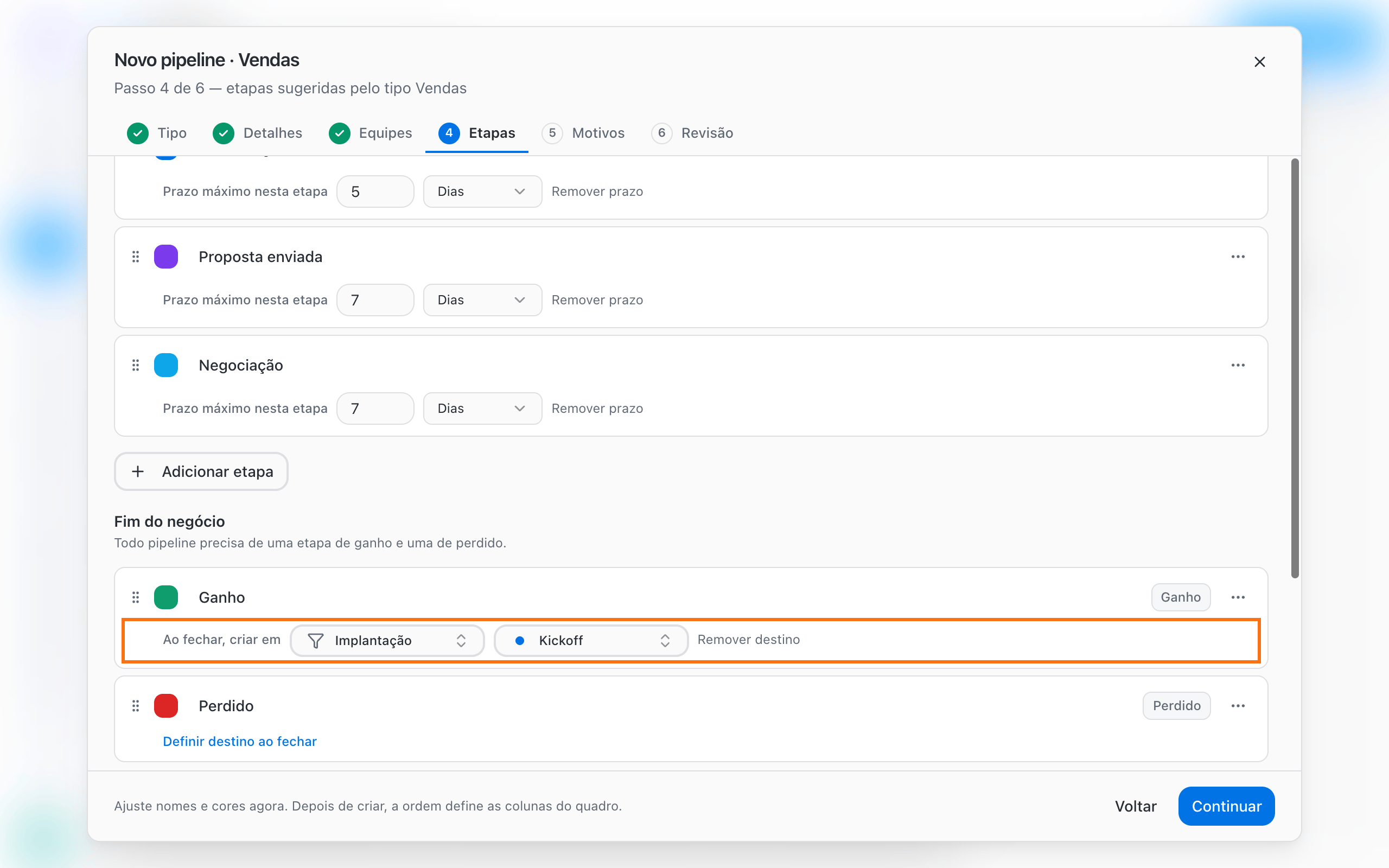
 Under **Deal end** you find the **Won** and **Lost** stages. Every Pipeline needs at least one open stage, one Won stage and one Lost stage. To change a stage's nature, use **Stage type** in the stage menu.
Click **Set a close destination on this stage** on an end stage so that, when a deal closes there, BluBash automatically creates a deal in another Pipeline.
Under **Deal end** you find the **Won** and **Lost** stages. Every Pipeline needs at least one open stage, one Won stage and one Lost stage. To change a stage's nature, use **Stage type** in the stage menu.
Click **Set a close destination on this stage** on an end stage so that, when a deal closes there, BluBash automatically creates a deal in another Pipeline.
 [Learn more about deal derivation →](/pipelines/derive-deals)
Add **Won** and **Lost** reasons using names your team already uses every day. Turn on **Require reason on win** and **Require reason on loss** so nobody closes a deal without recording why. To require a reason, the list must have at least one reason.
[Learn more about deal derivation →](/pipelines/derive-deals)
Add **Won** and **Lost** reasons using names your team already uses every day. Turn on **Require reason on win** and **Require reason on loss** so nobody closes a deal without recording why. To require a reason, the list must have at least one reason.
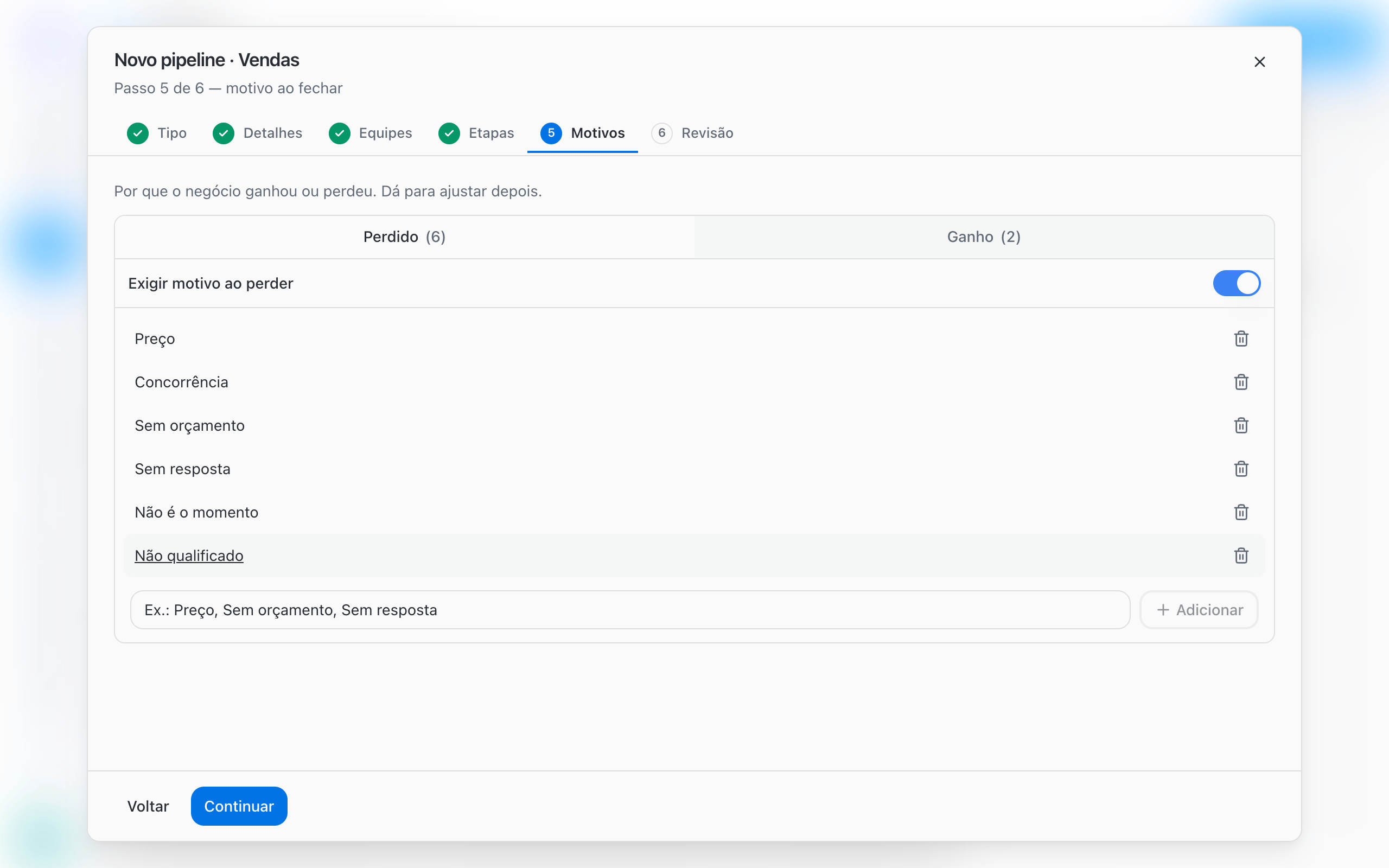 Add **Not qualified** as a lost reason. This way you do not need a discard stage, and you can measure how many leads were not a fit.
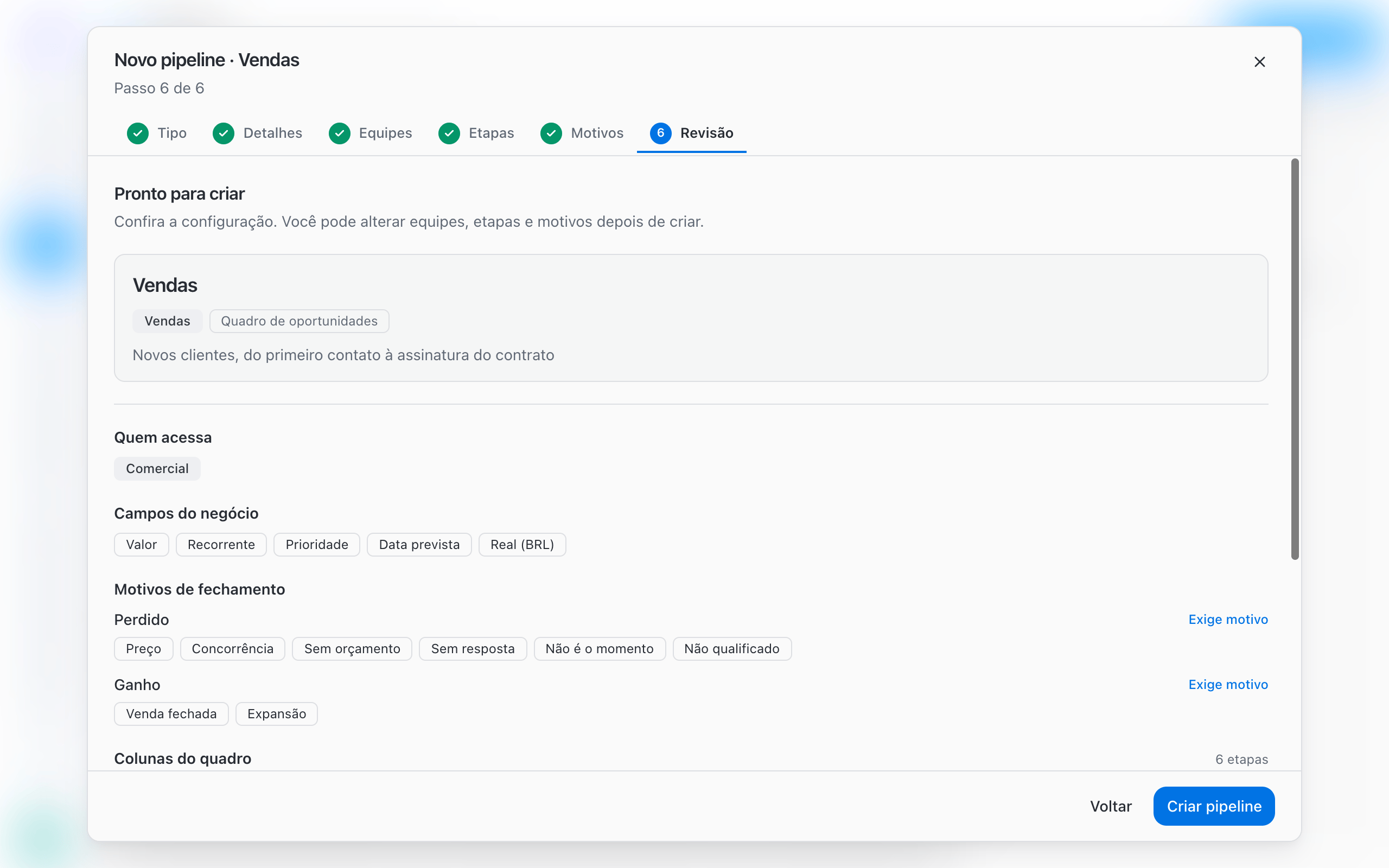
Under **Ready to create**, check **Who can access**, **Board columns**, **Deal fields** and **Close reasons**. Click **Create pipeline**. The setup applies to the board right away.
Add **Not qualified** as a lost reason. This way you do not need a discard stage, and you can measure how many leads were not a fit.
Under **Ready to create**, check **Who can access**, **Board columns**, **Deal fields** and **Close reasons**. Click **Create pipeline**. The setup applies to the board right away.
 ## Edit a Pipeline after creating it
On the board, click **Pipeline options**, next to the Pipeline selector:
| Option | What it does |
| - | - |
| **Edit pipeline** | Opens the settings with the **General**, **Teams**, **Stages**, **Reasons** and **Delete** tabs |
| **Manage stages** | Opens the stages tab directly, to rename, reorder and set deadlines and destinations |
| **Reorder pipelines** | Sets the order of Pipelines in the selector |
| **Delete pipeline** | Removes the Pipeline from the workspace |
Save with **Save changes** or, on the stages tab, with **Save stages**.
## Limitations and cautions
* **Deleting a stage with deals**: BluBash asks for an open destination stage and moves the deals before deleting (**Move and delete**). Won or Lost stages cannot receive those deals.
* **Deleting a Pipeline**: only allowed when there are no open deals. You confirm by typing the Pipeline name, and the action cannot be undone.
* **Unlinking teams**: if you are not on a linked team, only an Admin can unlink it.
* **No team, no board**: a Pipeline only appears to members of at least one linked team.
## Best practices
* Start from a template and remove what you do not use, instead of building everything from scratch.
* Set deadlines only on stages where delays are a real problem, such as **Proposal sent**.
* Review the stages after two or three weeks of use, based on where deals get stuck.
## Next steps
How to create, move and track deals on the board and in the conversation.
How to set up and use close reasons.
This documentation is built and hosted on [Mintlify](https://mintlify.com), a developer documentation platform.
## Edit a Pipeline after creating it
On the board, click **Pipeline options**, next to the Pipeline selector:
| Option | What it does |
| - | - |
| **Edit pipeline** | Opens the settings with the **General**, **Teams**, **Stages**, **Reasons** and **Delete** tabs |
| **Manage stages** | Opens the stages tab directly, to rename, reorder and set deadlines and destinations |
| **Reorder pipelines** | Sets the order of Pipelines in the selector |
| **Delete pipeline** | Removes the Pipeline from the workspace |
Save with **Save changes** or, on the stages tab, with **Save stages**.
## Limitations and cautions
* **Deleting a stage with deals**: BluBash asks for an open destination stage and moves the deals before deleting (**Move and delete**). Won or Lost stages cannot receive those deals.
* **Deleting a Pipeline**: only allowed when there are no open deals. You confirm by typing the Pipeline name, and the action cannot be undone.
* **Unlinking teams**: if you are not on a linked team, only an Admin can unlink it.
* **No team, no board**: a Pipeline only appears to members of at least one linked team.
## Best practices
* Start from a template and remove what you do not use, instead of building everything from scratch.
* Set deadlines only on stages where delays are a real problem, such as **Proposal sent**.
* Review the stages after two or three weeks of use, based on where deals get stuck.
## Next steps
How to create, move and track deals on the board and in the conversation.
How to set up and use close reasons.
This documentation is built and hosted on [Mintlify](https://mintlify.com), a developer documentation platform.