> ## Documentation Index
> Fetch the complete documentation index at: https://docs.blubash.io/llms.txt
> Use this file to discover all available pages before exploring further.
# Work with deals
> Create deals from the conversation or the board, move them through stages, add notes and tasks, filter the Pipeline and track deadlines and history.
A deal represents an opportunity or an ongoing process with a contact: a sale, an onboarding project, a request, an invoice. It sits in a Pipeline stage and holds amount, owner, priority, dates, notes, tasks and the full history of changes.
## Create a deal
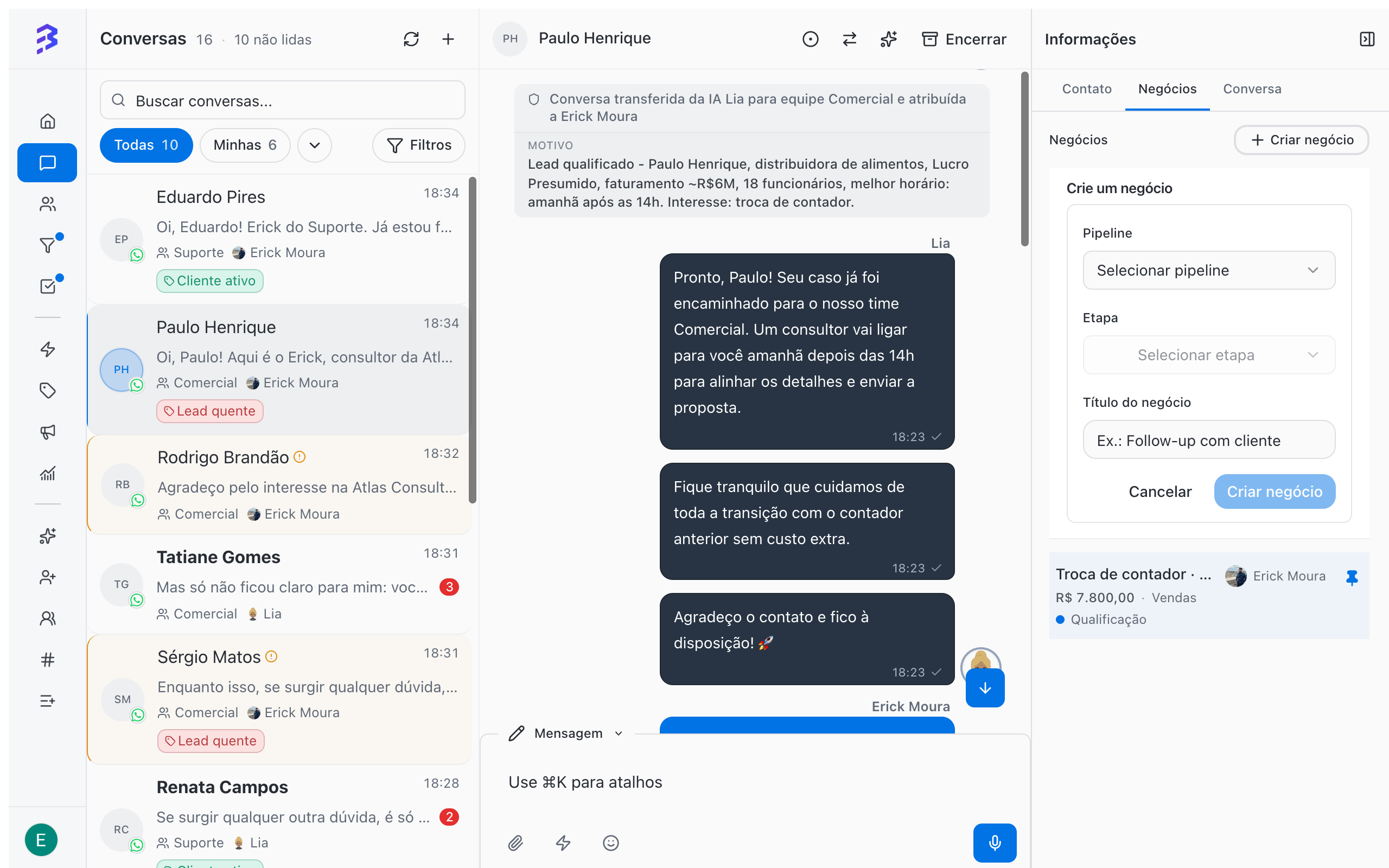
While serving the customer, open the **Information** panel on the right side of the conversation and go to the **Deals** tab.
1. Click **Create deal**.
2. In **Select pipeline**, choose the Pipeline. In **Select stage**, choose the stage the customer is in.
3. Enter the **Deal title** and click **Create deal**.
The deal is linked to the conversation and you keep serving the customer without switching screens.
 In the Pipeline, click **+** at the top of the stage column or **Deal** at the bottom of the column.
1. In **Search contact…**, type at least 3 letters of the name or 4 digits of the phone number and select the contact.
2. Enter the **Deal title**.
3. Click **Create deal**.
If you create the deal directly in a **Won** or **Lost** column, BluBash asks for the close reason, as with any close.
In the Pipeline, click **+** at the top of the stage column or **Deal** at the bottom of the column.
1. In **Search contact…**, type at least 3 letters of the name or 4 digits of the phone number and select the contact.
2. Enter the **Deal title**.
3. Click **Create deal**.
If you create the deal directly in a **Won** or **Lost** column, BluBash asks for the close reason, as with any close.
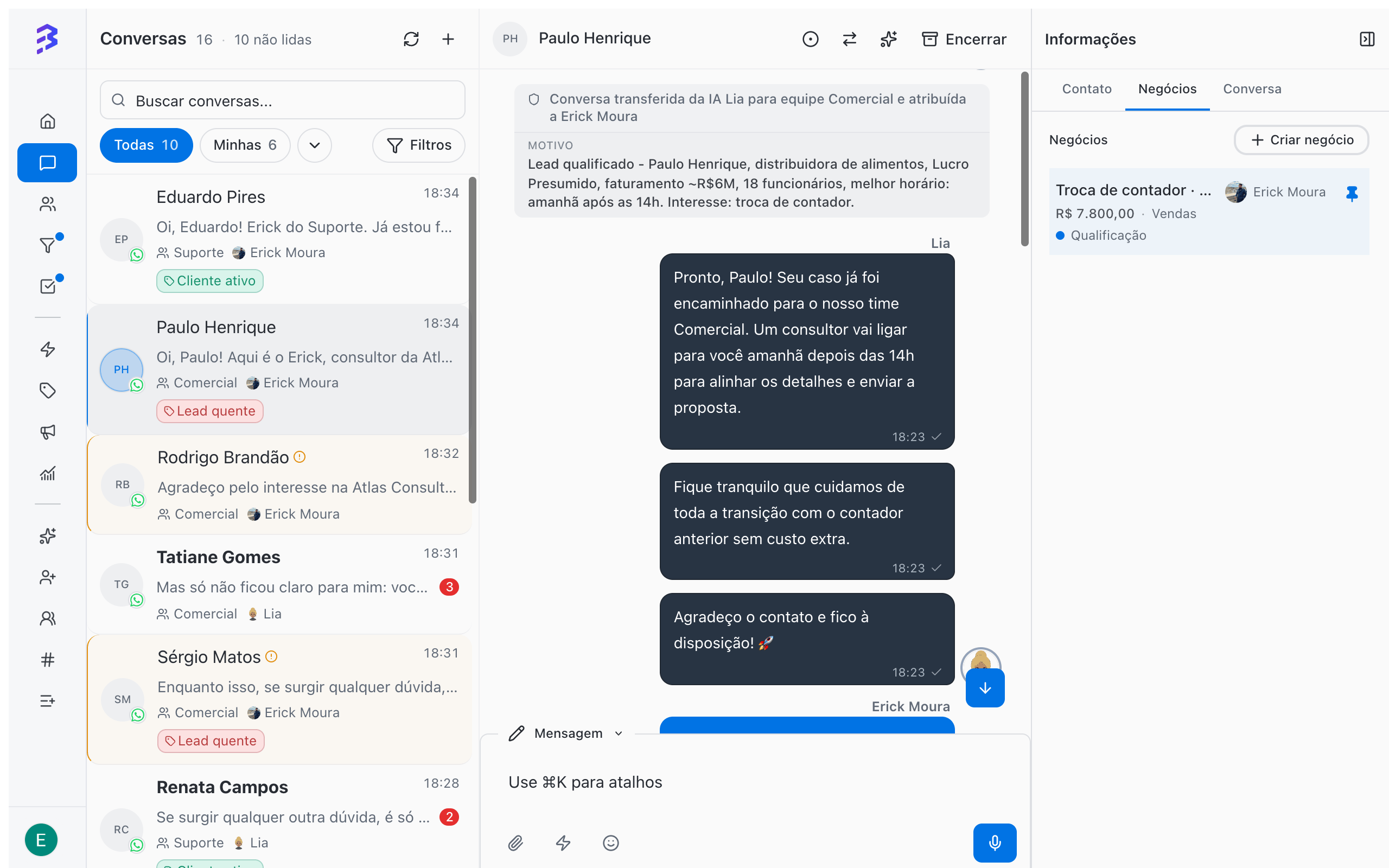 In hybrid service, the AI agent qualifies the customer and transfers the conversation with a summary. Agree on a rule with your team: when a team member receives a conversation qualified by the AI, they create the deal in the first Pipeline stage. The AI agent does not create deals yet, and without a deal the customer does not appear on the board.
## Move deals through stages
* **On the board**: press and hold the card and drag it to the next column. A single click opens the deal.
* **On the deal record**: change the **Stage** field under **About this deal**.
Each stage change is recorded in **History** with date and author, for example "Deal moved from Qualification to Proposal sent".
To close the deal, move it to a **Won** or **Lost** stage. [See how reasons work →](/pipelines/won-lost-reasons)
## The card on the board
Each card shows the deal title, the contact, the contact's tags and, depending on the fields enabled in the Pipeline, amount, priority and due date.
| Indicator | Meaning |
| - | - |
| **Today**, **in 3d**, **2d overdue** | Status of the due or close date |
| **time 6d / 5d** | Time in the stage compared with the maximum time. The card is highlighted when it exceeds the limit |
| Total at the top of the column | Sum of the deal values in the stage, when **Monetary value** is on |
Columns with many deals show **Showing X of Y** and load the rest as you scroll.
## The deal record
Click a card to open the record. Use **Open deal record** to see it full screen and **Back to board** to return.
In hybrid service, the AI agent qualifies the customer and transfers the conversation with a summary. Agree on a rule with your team: when a team member receives a conversation qualified by the AI, they create the deal in the first Pipeline stage. The AI agent does not create deals yet, and without a deal the customer does not appear on the board.
## Move deals through stages
* **On the board**: press and hold the card and drag it to the next column. A single click opens the deal.
* **On the deal record**: change the **Stage** field under **About this deal**.
Each stage change is recorded in **History** with date and author, for example "Deal moved from Qualification to Proposal sent".
To close the deal, move it to a **Won** or **Lost** stage. [See how reasons work →](/pipelines/won-lost-reasons)
## The card on the board
Each card shows the deal title, the contact, the contact's tags and, depending on the fields enabled in the Pipeline, amount, priority and due date.
| Indicator | Meaning |
| - | - |
| **Today**, **in 3d**, **2d overdue** | Status of the due or close date |
| **time 6d / 5d** | Time in the stage compared with the maximum time. The card is highlighted when it exceeds the limit |
| Total at the top of the column | Sum of the deal values in the stage, when **Monetary value** is on |
Columns with many deals show **Showing X of Y** and load the rest as you scroll.
## The deal record
Click a card to open the record. Use **Open deal record** to see it full screen and **Back to board** to return.
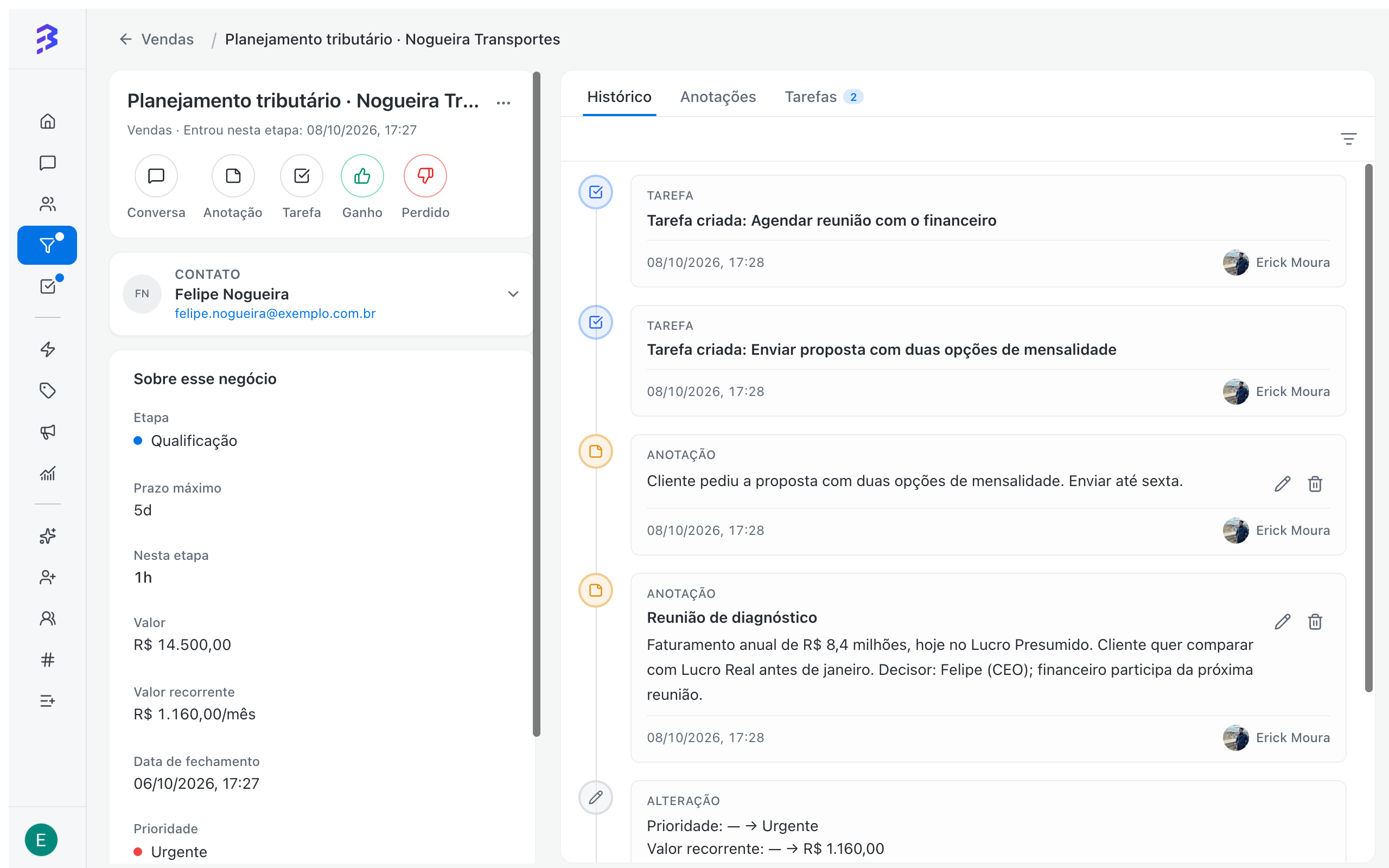 | Area | What you find |
| - | - |
| **About this deal** | Pipeline, Stage, Amount, Recurring value and Billing period, Owner, Close date, Priority and Status. Empty fields are collapsed under **Show N empty fields** |
| Quick actions | **Chat**, **Note**, **Task**, the close actions and **Contact** |
| **Stage deadline** | The stage's **Maximum time**, time **In this stage** and when the deal **Entered this stage** |
| **Deal duration** | Time from creation to close |
| **History** | Stage moves, field changes, notes and tasks, filtered by **All**, **Notes**, **Changes** or **Tasks** |
| **Notes** | Internal team records about the deal |
| **Tasks** | Next steps with due dates, linked to the deal |
| **More options** | **Move deal** to another Pipeline and **Delete deal** |
### Quick actions
| Action | What it does |
| - | - |
| **Chat** | Opens the conversation with the contact |
| **Note** | Creates a note on the deal |
| **Task** | Creates a task linked to the deal |
| Close actions | Move the deal to an end stage. The button shows the stage name, such as **Won** or **Lost** in the Sales template. If the Pipeline has more than one Won or Lost stage, the button becomes **Win** or **Lose** and opens the list of stages |
| **Contact** | Opens the contact record |
### Notes
Use **Note** to record what was agreed in meetings, objections and next steps. Enter a **Title (optional)** and the text and click **Create note**. Notes are not sent to the customer, stay in the deal history and are visible to everyone with access to the Pipeline. You can edit or delete a note later.
### Tasks
Use **Task** to schedule the next step: send the proposal, call to confirm, request a document. The task is linked to the deal and also appears in **Tasks** in the sidebar. Use **Complete task** when you finish and **Reopen task** if you need to go back.
[Manage tasks →](/tasks/overview)
## Filter the board
| Filter | Use |
| - | - |
| **All** / **Mine** | **Mine** shows only the deals you own |
| **Owner** | Deals owned by a specific person (available in the **All** view) |
| **Tags** | Deals of contacts with the selected tags, including tags applied by the AI agent |
| **Priority** | Low, Medium, High or Urgent |
| **Due date** | **Any due date**, **Overdue**, **This week** or **No date** |
| **Value** | **Min** and **Max** range, applied to the one-time or recurring value |
| **Recurring period** | Monthly, Quarterly, Semiannual or Annual, for recurring values |
| **Search** | Searches deals in the current Pipeline. Type at least 3 letters or 4 digits |
Use **Clear filters** to go back to the full view.
## Stalled deals
When a stage has a **Maximum time**, the card shows how long the deal has been there compared with the limit and is highlighted when it goes over. Combine this with the **Due date → Overdue** filter to review every day what needs action.
## Move to another Pipeline
In **More options → Move deal**, choose the **Destination pipeline** and the **Destination stage**. Use it to fix a deal created in the wrong Pipeline. To hand the customer to the next area, prefer [derivation →](/pipelines/derive-deals)
## Delete a deal
In **More options → Delete deal**, confirm the deletion. The action is permanent: the deal data, notes, linked tasks and history are no longer available. To end a deal that did not move forward, prefer **Lost** with a reason.
## Several deals for the same contact
A contact can have several open deals at once, in different Pipelines, each with its own stage, amount and owner. In the conversation, the **Deals** tab of the **Information** panel lists the contact's deals you have access to. The **Deals** tab on the contact record shows the same.
## Best practices
* Assign an owner to every deal. Deals without an owner do not appear in anyone's **Mine** view.
* Add a note after every important interaction outside the conversation, such as meetings and calls.
* End every update with a task: every open deal should have a next step with a due date.
## Next steps
Close deals with the reason recorded.
Organize your team's next steps.
This documentation is built and hosted on [Mintlify](https://mintlify.com), a developer documentation platform.
| Area | What you find |
| - | - |
| **About this deal** | Pipeline, Stage, Amount, Recurring value and Billing period, Owner, Close date, Priority and Status. Empty fields are collapsed under **Show N empty fields** |
| Quick actions | **Chat**, **Note**, **Task**, the close actions and **Contact** |
| **Stage deadline** | The stage's **Maximum time**, time **In this stage** and when the deal **Entered this stage** |
| **Deal duration** | Time from creation to close |
| **History** | Stage moves, field changes, notes and tasks, filtered by **All**, **Notes**, **Changes** or **Tasks** |
| **Notes** | Internal team records about the deal |
| **Tasks** | Next steps with due dates, linked to the deal |
| **More options** | **Move deal** to another Pipeline and **Delete deal** |
### Quick actions
| Action | What it does |
| - | - |
| **Chat** | Opens the conversation with the contact |
| **Note** | Creates a note on the deal |
| **Task** | Creates a task linked to the deal |
| Close actions | Move the deal to an end stage. The button shows the stage name, such as **Won** or **Lost** in the Sales template. If the Pipeline has more than one Won or Lost stage, the button becomes **Win** or **Lose** and opens the list of stages |
| **Contact** | Opens the contact record |
### Notes
Use **Note** to record what was agreed in meetings, objections and next steps. Enter a **Title (optional)** and the text and click **Create note**. Notes are not sent to the customer, stay in the deal history and are visible to everyone with access to the Pipeline. You can edit or delete a note later.
### Tasks
Use **Task** to schedule the next step: send the proposal, call to confirm, request a document. The task is linked to the deal and also appears in **Tasks** in the sidebar. Use **Complete task** when you finish and **Reopen task** if you need to go back.
[Manage tasks →](/tasks/overview)
## Filter the board
| Filter | Use |
| - | - |
| **All** / **Mine** | **Mine** shows only the deals you own |
| **Owner** | Deals owned by a specific person (available in the **All** view) |
| **Tags** | Deals of contacts with the selected tags, including tags applied by the AI agent |
| **Priority** | Low, Medium, High or Urgent |
| **Due date** | **Any due date**, **Overdue**, **This week** or **No date** |
| **Value** | **Min** and **Max** range, applied to the one-time or recurring value |
| **Recurring period** | Monthly, Quarterly, Semiannual or Annual, for recurring values |
| **Search** | Searches deals in the current Pipeline. Type at least 3 letters or 4 digits |
Use **Clear filters** to go back to the full view.
## Stalled deals
When a stage has a **Maximum time**, the card shows how long the deal has been there compared with the limit and is highlighted when it goes over. Combine this with the **Due date → Overdue** filter to review every day what needs action.
## Move to another Pipeline
In **More options → Move deal**, choose the **Destination pipeline** and the **Destination stage**. Use it to fix a deal created in the wrong Pipeline. To hand the customer to the next area, prefer [derivation →](/pipelines/derive-deals)
## Delete a deal
In **More options → Delete deal**, confirm the deletion. The action is permanent: the deal data, notes, linked tasks and history are no longer available. To end a deal that did not move forward, prefer **Lost** with a reason.
## Several deals for the same contact
A contact can have several open deals at once, in different Pipelines, each with its own stage, amount and owner. In the conversation, the **Deals** tab of the **Information** panel lists the contact's deals you have access to. The **Deals** tab on the contact record shows the same.
## Best practices
* Assign an owner to every deal. Deals without an owner do not appear in anyone's **Mine** view.
* Add a note after every important interaction outside the conversation, such as meetings and calls.
* End every update with a task: every open deal should have a next step with a due date.
## Next steps
Close deals with the reason recorded.
Organize your team's next steps.
This documentation is built and hosted on [Mintlify](https://mintlify.com), a developer documentation platform.