Create a deal
- From the conversation (recommended)
- From the board
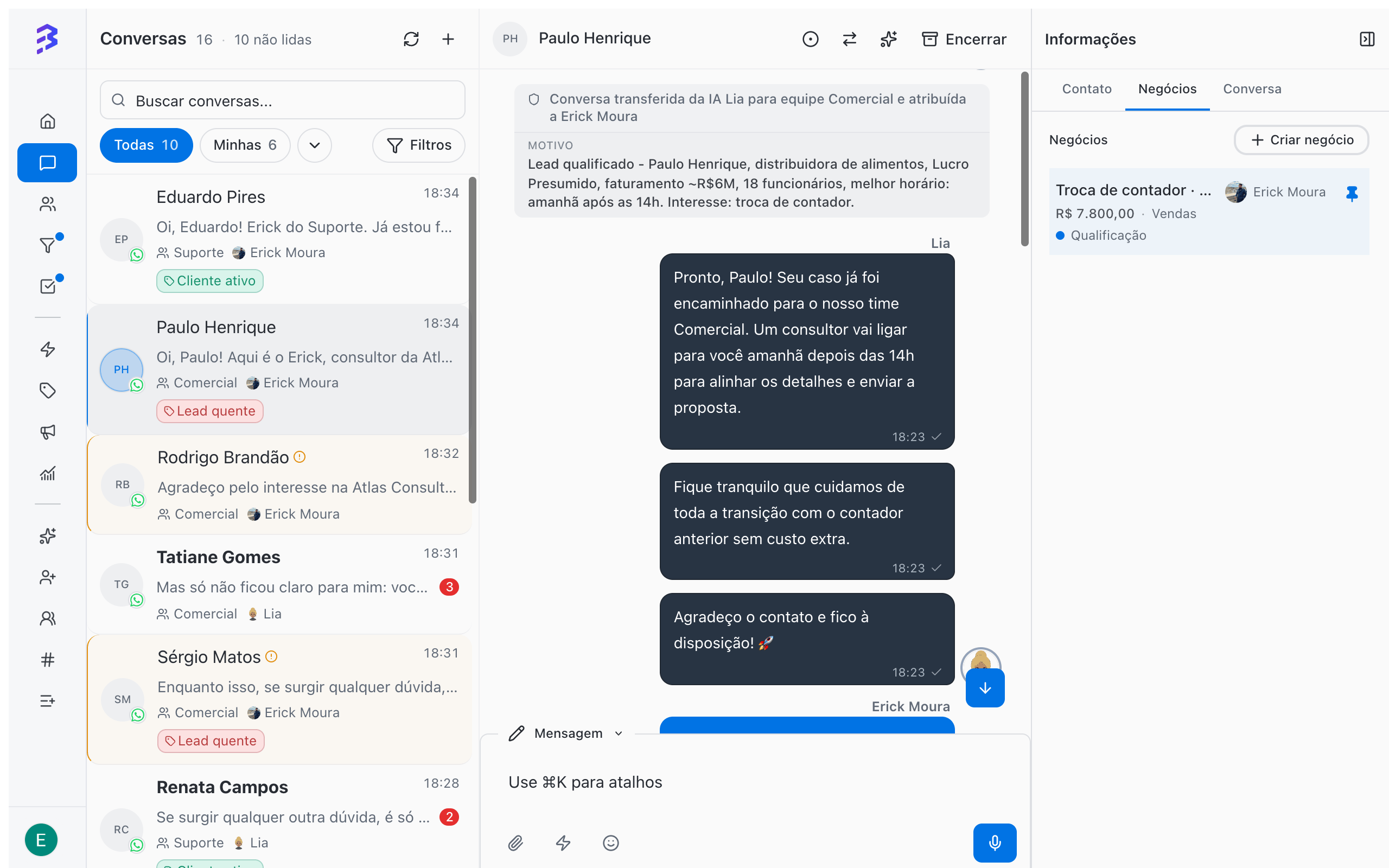
While serving the customer, open the Information panel on the right side of the conversation and go to the Deals tab.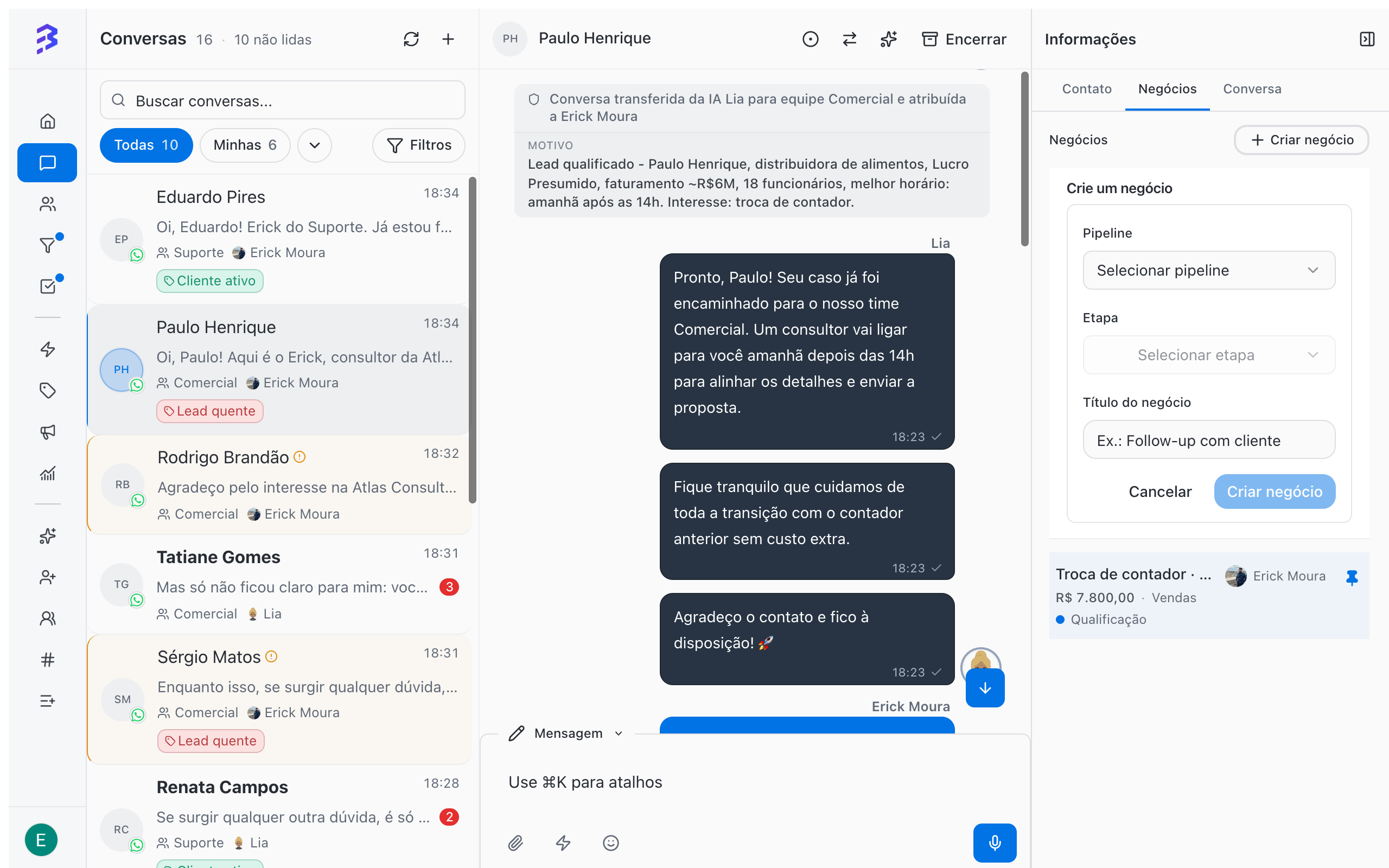
- Click Create deal.
- In Select pipeline, choose the Pipeline. In Select stage, choose the stage the customer is in.
- Enter the Deal title and click Create deal.
Move deals through stages
- On the board: press and hold the card and drag it to the next column. A single click opens the deal.
- On the deal record: change the Stage field under About this deal.
The card on the board
Each card shows the deal title, the contact, the contact’s tags and, depending on the fields enabled in the Pipeline, amount, priority and due date.
Columns with many deals show Showing X of Y and load the rest as you scroll.
The deal record
Click a card to open the record. Use Open deal record to see it full screen and Back to board to return.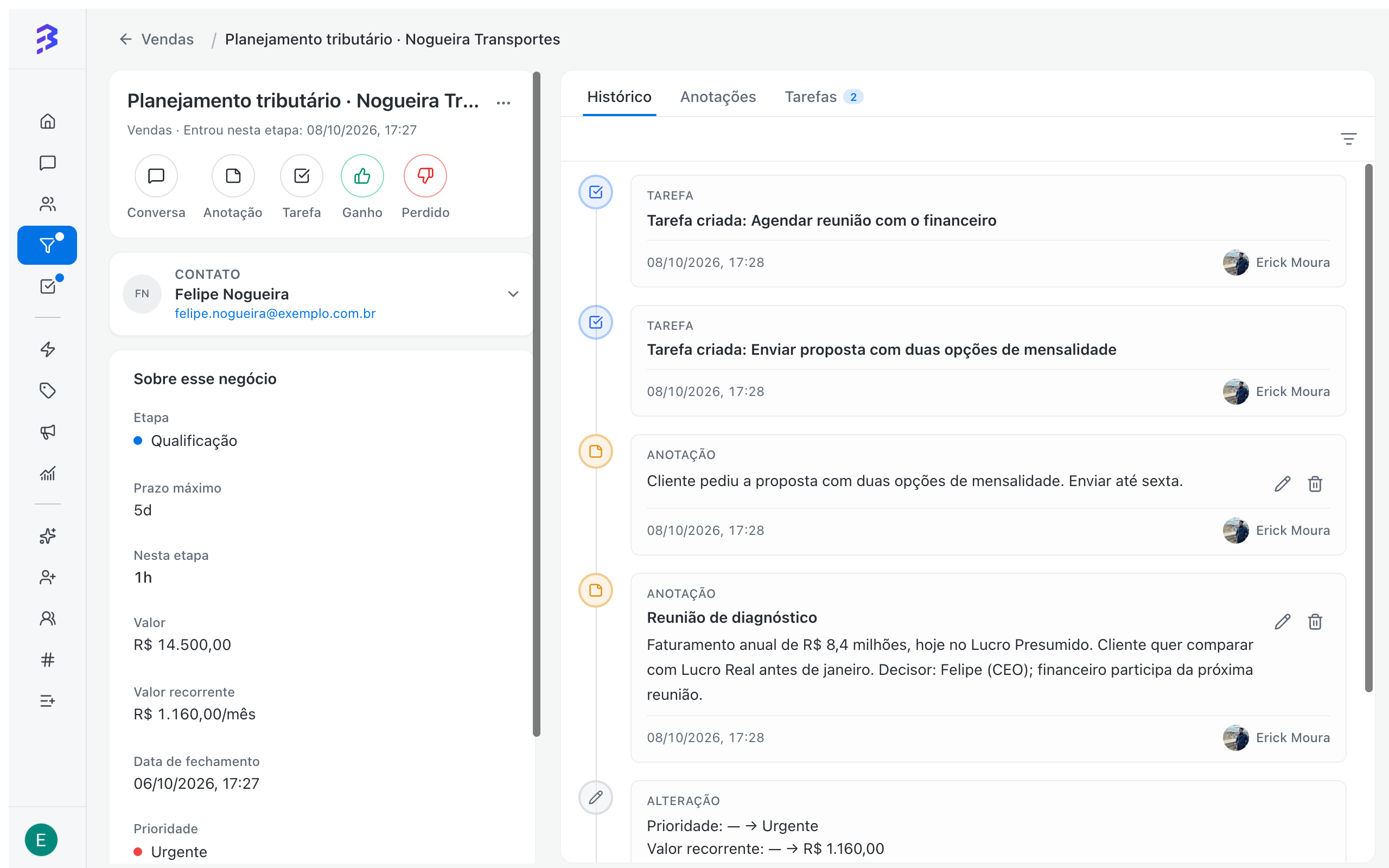
Quick actions
Notes
Use Note to record what was agreed in meetings, objections and next steps. Enter a Title (optional) and the text and click Create note. Notes are not sent to the customer, stay in the deal history and are visible to everyone with access to the Pipeline. You can edit or delete a note later.Tasks
Use Task to schedule the next step: send the proposal, call to confirm, request a document. The task is linked to the deal and also appears in Tasks in the sidebar. Use Complete task when you finish and Reopen task if you need to go back. Manage tasks →Filter the board
Use Clear filters to go back to the full view.
Stalled deals
When a stage has a Maximum time, the card shows how long the deal has been there compared with the limit and is highlighted when it goes over. Combine this with the Due date → Overdue filter to review every day what needs action.Move to another Pipeline
In More options → Move deal, choose the Destination pipeline and the Destination stage. Use it to fix a deal created in the wrong Pipeline. To hand the customer to the next area, prefer derivation →Delete a deal
In More options → Delete deal, confirm the deletion. The action is permanent: the deal data, notes, linked tasks and history are no longer available. To end a deal that did not move forward, prefer Lost with a reason.Several deals for the same contact
A contact can have several open deals at once, in different Pipelines, each with its own stage, amount and owner. In the conversation, the Deals tab of the Information panel lists the contact’s deals you have access to. The Deals tab on the contact record shows the same.Best practices
- Assign an owner to every deal. Deals without an owner do not appear in anyone’s Mine view.
- Add a note after every important interaction outside the conversation, such as meetings and calls.
- End every update with a task: every open deal should have a next step with a due date.
Next steps
Won, Lost and reasons
Close deals with the reason recorded.
Tasks
Organize your team’s next steps.