When to use
- To review conversations handled only by the AI agent and confirm it answers well.
- To understand why a conversation was transferred or ended with an unhappy customer.
- To prepare feedback sessions with team members, using concrete examples.
- To spot risks, such as requests for personal data without a record of consent.
Open the 360° View
1
Open the conversations report
In Reports & Insights, click View report on the Conversations card.
2
Switch to Detailed mode
In View mode, choose Detailed and use the filters to find the conversation.
3
Click the conversation
The 360° View opens with the full conversation. Use Back to list to return to the report.
The 360° View is available to Admins and to Managers, for conversations of the teams they belong to.
360° View tabs
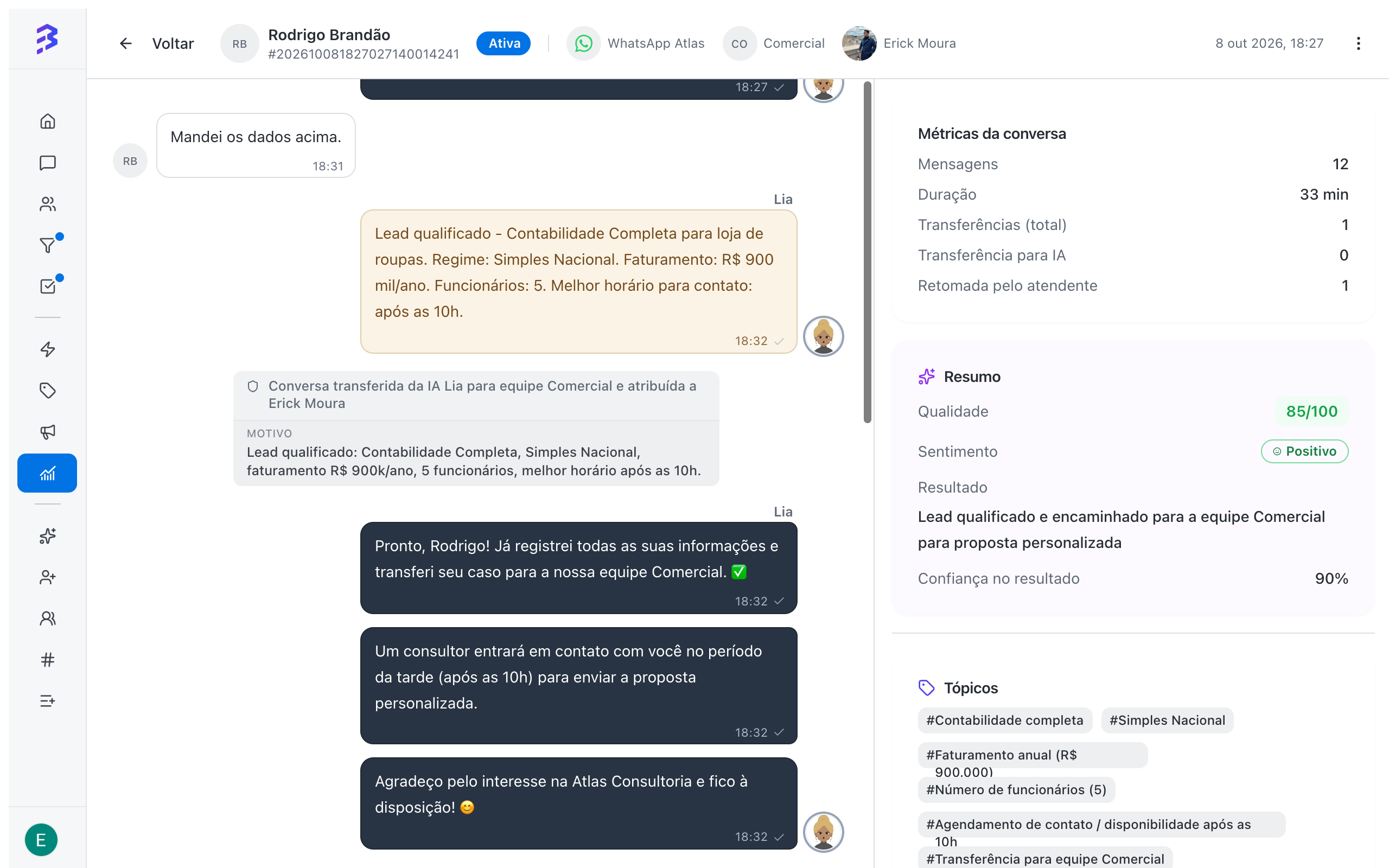
Conversation metrics
Generate the AI analysis
On the AI Analysis tab, click Generate AI analysis. The analysis takes a few moments (Analyzing…). To redo it after new messages, use Generate new analysis.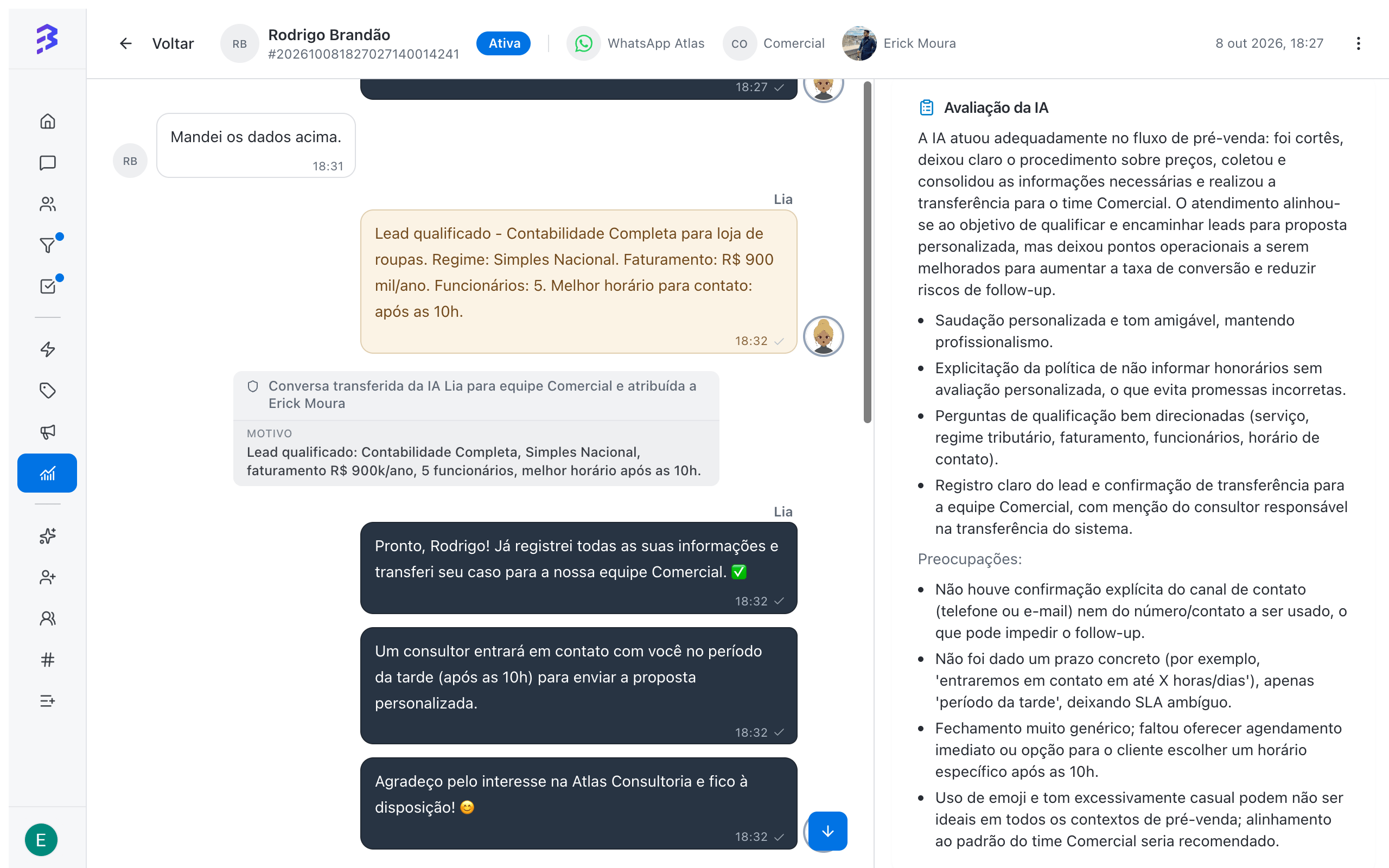
Example: hybrid conversation
In the conversation above, the AI agent Lia qualified an accounting lead and transferred it to the Sales team. The analysis gave a quality of 85/100 and positive sentiment, and pointed out two improvements: confirm the phone number or email before the transfer, and give a concrete callback time. Both became adjustments to the agent’s training and instructions, and the next conversations were better right away.From diagnosis to action
Train the AI agent → · Configure skills →
Best practices
- Analyze a weekly sample of conversations handled only by the AI, not just transferred ones or those with low scores.
- Compare the AI evaluation with the customer’s Satisfaction Survey score. Differences often reveal process problems.
- Turn recurring suggestions into AI agent training, quick replies or team scripts.
Next steps
Conversations report
Find the conversations to analyze.
Train the AI agent
Apply the improvements the analysis points out.