When to use
- For commitments that happen outside the conversation: a call, a meeting, sending a proposal.
- To make sure every open deal has a next step with a date.
- To keep track of what the AI agent agreed with the customer before transferring the conversation.
Where to create a task
Create a task from the Tasks screen
1
Open the form
In Tasks, click New task.
2
Describe it and set the due date
Write the task title and, if you want, set the due date. Tasks without a date go to the No due date group.
3
Link a contact (optional)
In Contact (optional), search for the contact by name or phone. Type at least 3 characters or 4 digits. With no contact, the task stays personal.
4
Link a deal (optional)
With a contact selected, choose the Deal (optional). Only that contact’s open deals appear. Choose the None option to link only the contact.
5
Save
Confirm the creation. The task appears in the group that matches its due date.
How tasks are organized
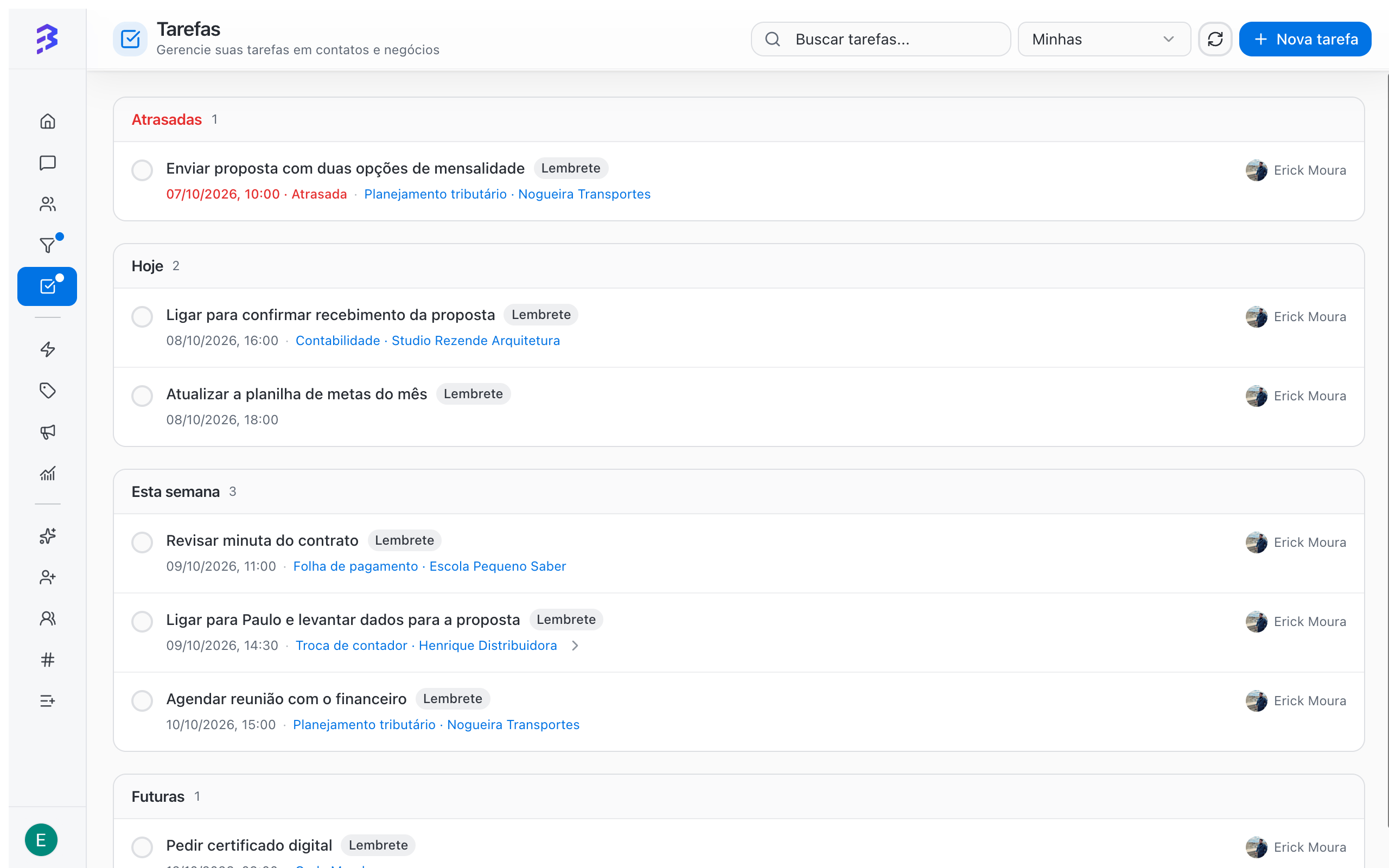
Tasks are grouped by due date:
Use Search tasks… to find a task by text and Refresh to reload the list.
Complete, edit and delete
- Complete: mark the task as completed. It moves to Completed.
- Reopen: if you need to go back to a completed task, reopen it. It returns to its due date group.
- Edit: change the title, due date, contact or deal.
- Delete: removes the task.
Scope: mine, team or workspace
Tasks and deals
Tasks created on a deal appear in the Tasks tab of the record and in the deal History, as Task created, Task completed and Task edited. When you open the deal, you see the last step and the next one. Work with deals →Best practices
- Write the title as an action: “Call to confirm the proposal”, not “Proposal”.
- Always set a due date. Tasks without one tend to be forgotten.
- When you complete a deal task, create the next one. Every open deal should have a next step.
- Record the outcome in a deal note. The task says what to do, the note says what happened.
Next steps
Work with deals
Notes, tasks and history on the deal record.
Contact activity timeline
See everything that happened with a contact.