When to use it
Why derive instead of move
You can also move a deal to another Pipeline in More options → Move deal, but the two paths have different effects:Set the close destination
Configuring stages requires the Admin or Manager role. The destination Pipeline must already exist.
1
Open the source Pipeline's stages
In Pipelines, select the Pipeline (for example, Sales), open Pipeline options and choose Manage stages. If you are creating the Pipeline, use the wizard’s Stages step.
2
Set the destination on the end stage
Under Deal end, on the Won stage, click Set a close destination on this stage. Under On close, create in, choose the Target pipeline and the Target stage. The Pipeline itself is not offered as a destination.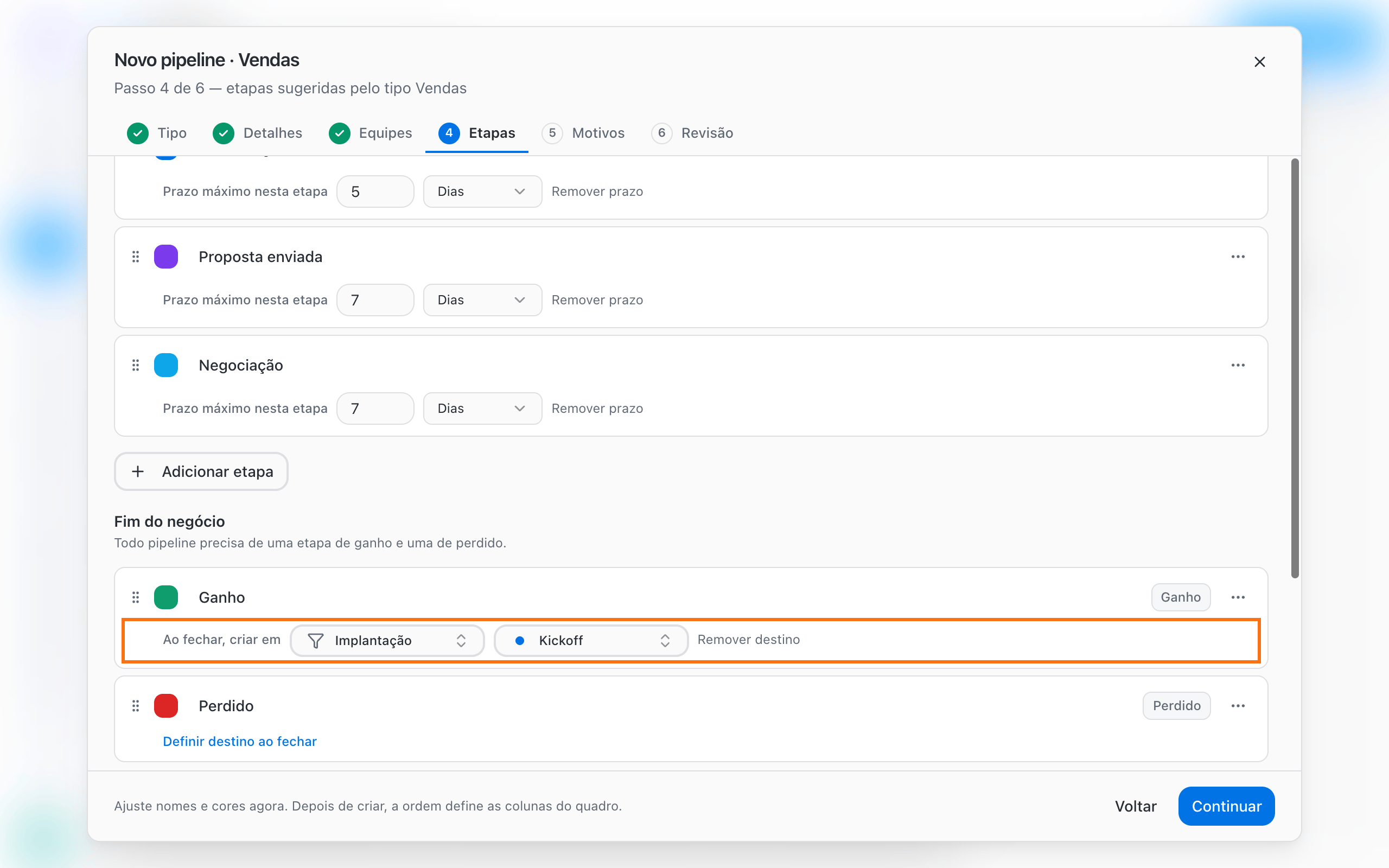
3
Save
Click Save stages (or continue the wizard to Create pipeline). From then on, every deal that reaches that stage creates the derived deal.
Lost stages also accept a destination. Open stages do not have this option.
What happens when a deal is closed
- The team member moves the deal to the end stage (by dragging the card or using the quick action on the deal record) and picks the reason, if the Pipeline requires one.
- BluBash creates the new deal in the destination Pipeline and stage, with the same contact.
- The Deal created in [Pipeline] notice appears, with an Undo option. Undoing removes the derived deal and the original stays closed.
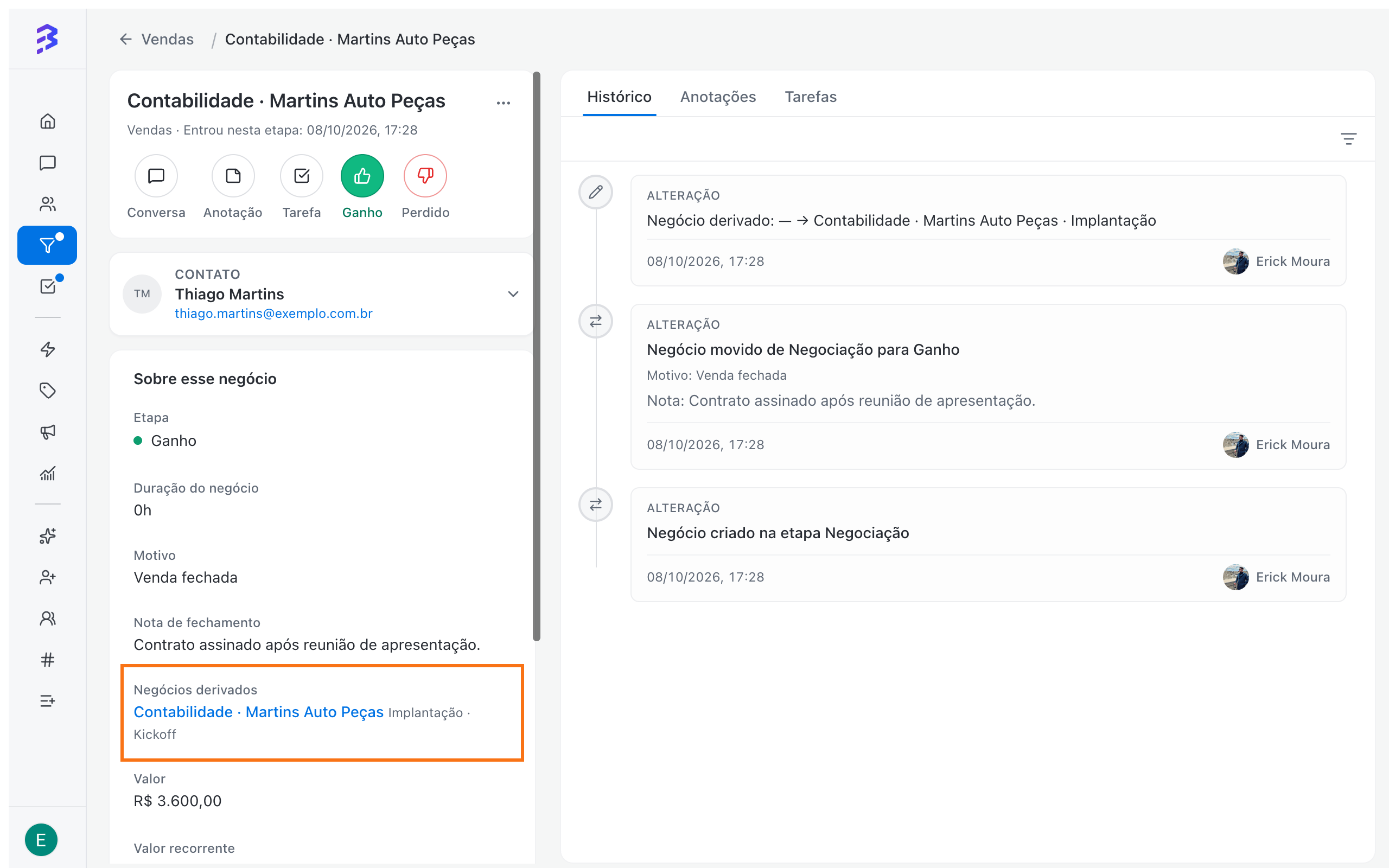
- The original deal record shows Derived deals. The new deal record shows Derived from, with a link to the source.
Example: Sales to Onboarding
When the closer marks the sale as won, the customer automatically appears in Kickoff in the Onboarding Pipeline, and the Sales Pipeline still shows the won sale. If the Onboarding team uses an AI agent, it can greet the customer in the conversation, request the initial documents and transfer to the team when everything is ready.
Best practices
- Set a destination only when every deal in that stage needs to continue in another area. For exceptions, create the deal manually from the conversation.
- Choose the first stage of the next area’s process as the destination.
- Use several Won stages when the same Pipeline feeds different areas. See how →
Next steps
Work with deals
Deal record, notes and tasks.
Create a Pipeline
Build the next area’s destination Pipeline.